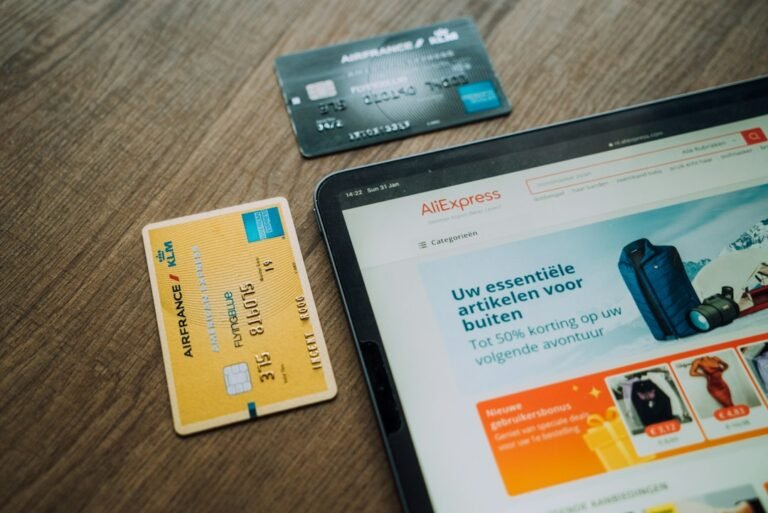
Where to place Apple Pay, Google Pay and PayPal buttons for maximum lift is a question that many e‑commerce operators ask when they see cart abandonment spikes at checkout. The answer is not a one‑size‑fits‑all placement, but a data‑driven process that aligns button visibility with shopper intent, page load speed and mobile‑first design. In this article we break down the economics, give a repeatable testing framework, walk through a hypothetical worked example, flag the most common errors, and finish with a concise implementation checklist.
The revenue impact of strategic button placement
Digital wallets have been gaining market share for several years, and mobile payment adoption in South Africa has grown substantially alongside smartphone banking generally. When the right button appears at the right moment, conversion rates can meaningfully improve, and placement (not just whether the button exists at all) is a large part of why. Below are three core ways placement drives revenue:
- Visibility at the point of decision. Shoppers decide within seconds whether to continue or abandon. A button that is immediately visible reduces cognitive load.
- Reduced friction for returning customers. Saved card details mean fewer clicks; placing the button where a returning user expects it cuts steps.
- Trust signaling. Recognisable logos near the price or total reinforce security, especially for high‑value baskets.
In practice, the lift varies by industry, average order value (AOV) and device mix. For a South African cosmetics store with a R2 500 AOV, a 2 % lift translates to an extra R50 000 per month on a traffic volume of 5 000 checkout initiations.
Step‑by‑step method to test placement
Testing is the only way to know where the buttons belong for your specific audience. Follow this six‑step method:
1. Gather baseline data
Use your analytics platform to capture the following metrics for the past 30 days:
- Checkout initiation count
- Conversion rate per device (desktop, tablet, mobile)
- Current click‑through rate (CTR) on each digital‑wallet button
- Average order value for sessions that use each method
Export the data into a spreadsheet. For example, a fashion retailer might see:
| Device | Initiations | Current CTR | Conversion |
|---|---|---|---|
| Mobile | 4 200 | 1.2 % | 2.5 % |
| Desktop | 1 800 | 0.8 % | 3.1 % |
2. Choose test locations
Identify up to four places where the button could appear without breaking design guidelines:
- Above the order summary (desktop only)
- Sticky footer on mobile (always visible)
- Inside the payment method carousel, as the first option
- Near the “Place Order” button, sharing the same colour palette
3. Set up A/B or multivariate tests
Use a tool such as Google Optimize or Optimizely. Create variants that isolate one placement change at a time. Keep all other variables constant – same copy, same colour, same loading speed. Run each variant for at least 7 days or until you reach 1 000 unique visitors per variant, whichever comes first.
4. Measure lift
Calculate the lift using the formula:
Lift = (Conversion_variant - Conversion_control) ÷ Conversion_control × 100 %
If the sticky footer variant yields a 3.0 % conversion on mobile versus the control 2.5 %, the lift is (3.0 - 2.5) ÷ 2.5 × 100 = 20 %.
5. Validate statistical significance
Apply a chi‑square test or use the built‑in calculator in your testing platform. Aim for a p‑value below 0.05 before making a rollout decision.
6. Roll out the winner and monitor
Implement the winning placement across all pages. Keep an eye on the same metrics for the next 30 days to confirm the lift sustains. If the lift drops, revisit step 2 and test a secondary location.
A hypothetical worked example
Consider a complete test for a retailer that sells mid‑range apparel, with an average traffic split of 65 % mobile, 25 % desktop and 10 % tablet.
Baseline data (30 days)
- Mobile checkout initiations: 6 800
- Desktop checkout initiations: 2 600
- Overall conversion: 2.9 %
- Apple Pay CTR on mobile: 0.9 %
- Google Pay CTR on mobile: 0.7 %
- PayPal CTR on desktop: 1.1 %
The retailer decides to test two placements on mobile: the existing bottom‑of‑page button (Control) versus a sticky footer that stays visible while the shopper scrolls (Variant A). On desktop they test moving PayPal from the lower payment carousel to the top of the list (Control) versus a dedicated “Pay with PayPal” button next to the “Place Order” button (Variant B).
Test results after 14 days
| Variant | Device | Conversions | Conversion % | Lift |
|---|---|---|---|---|
| Control | Mobile | 168 | 2.47 % | , |
| Variant A | Mobile | 210 | 3.09 % | +25 % |
| Control | Desktop | 81 | 3.12 % | , |
| Variant B | Desktop | 98 | 3.77 % | +21 % |
Both variants passed the significance threshold (p < 0.03). The retailer rolled out the sticky footer for Apple Pay and Google Pay on all mobile pages, and placed a prominent PayPal button next to “Place Order” on desktop. Within the next month the overall conversion rose to 3.4 %, delivering an estimated extra revenue of R120 000 based on a R2 800 AOV.
Common placement mistakes and how to avoid them
Even seasoned operators can trip over simple errors that erase the potential lift.
- Cluttering the interface. Adding three wallet buttons side by side in a narrow header forces the layout to wrap, making each button smaller. The result is a lower CTR. Keep the design clean; if space is limited, show the most popular method and hide the rest behind a “More payment options” link.
- Placing buttons after the final “Place Order”. Users who reach that point have already committed to the purchase. A button that appears afterwards adds no value and can cause confusion.
- Neglecting mobile‑first testing. Over 60 % of South African traffic is mobile. A placement that works on desktop may be invisible on a small screen. Always preview on the smallest common device.
- Using low‑resolution logos. Blurry Apple Pay or PayPal icons look unprofessional and reduce trust. Use the vector assets provided in each brand’s own guidelines, such as Apple’s official Apple Pay design guidelines, rather than a downloaded or recreated logo.
- Forgetting page speed. Loading a third‑party script for each button can add 300 ms of latency. Combine scripts where possible and use async loading.
Quick checklist for implementation
Before you push changes live, run through this list:
- Identify the primary device for each wallet (Apple Pay – iOS, Google Pay – Android, PayPal – desktop & mobile).
- Choose a placement that is visible before the shopper scrolls past the order total.
- Make the button at least 44 px high to meet touch‑target guidelines.
- Use the official SVG logo, maintain the brand colour, and add an accessible
aria-label(e.g., “Pay with Apple Pay”). - Test with a minimum of 1 000 unique visitors per variant, or run for at least 7 days.
- Validate statistical significance (p < 0.05).
- Monitor post‑rollout conversion and AOV for 30 days.
- Run a free scan of your store to see where your checkout is leaking revenue.
See where your own store is leaking revenue with a free store scan.
Audience Connect
We help online stores find and fix the money quietly leaking out of their checkout. These guides are part of that work. Want to see where your own store is leaking?
Scan your store free